The icon of an iPhone app must be 57 × 57 pixels, and iPad app icons must be 72 x 72 pixels. How to specify both icons in your Info.plist, given that the CFBundleIconFile property only allows one value?
Apple’s documentation on this is a little hard to find but the solution is very simple: add a CFBundleIconFiles (note the plural) key of type Array to your Info.plist. The items in the array should be string values containing the filenames of all the icons your app needs. In a universal app, you should provide at least the two main icons (57 × 57 and 72 × 72). Optionally, you can also add two smaller icons used for your app in the Settings app and Spotlight search. These should be 29 × 29 pixels for the iPhone and 48 × 48 for the iPad.
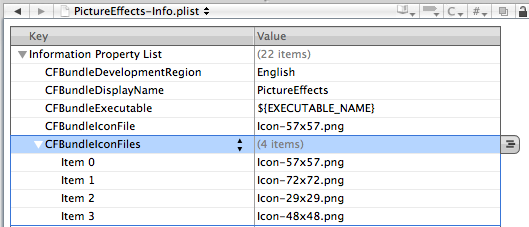
CFBundleIconFiles key in Info.plist.
The filenames of the icons and the order of the items in the array are arbitray. The system automatically chooses the file with the correct dimensions based on the device type. You should keep the CFBundleIconFile key and have it point to your iPhone icon for 3.0/3.1 compatibility.
Update May 13, 2010: Thanks to reader PBK who pointed me at Technical Note QA1686 titled App Icons on iPad and iPhone that Apple recently published. It contains a very concise overview about all the icons you must and can provide.